 Thrum
How to force quit an app on a Mac
Last checked: October 2026 on macOS 26 Tahoe.
To force quit an app on a Mac, press Option-Command-Esc, select the app in the Force Quit Applications window, and click Force Quit. You can also choose Force Quit from the Apple menu, Option-Control-click the app's icon in the Dock, or use Activity Monitor or Terminal. Force quitting stops the app at once, so any unsaved changes in it are lost; try a normal Quit first if the app still responds.
1. With the keyboard: Option-Command-Esc
- Press Option-Command-Esc. The Force Quit Applications window opens.
- Select the app. Apps that have stopped responding are marked (Not Responding).
- Click Force Quit, then confirm.
This works even when the frozen app covers the screen, and it is the quickest method.
2. From the Apple menu
Choose Apple menu > Force Quit…. The same Force Quit Applications window opens. Select the app and click Force Quit. If the frozen app is in front, holding Shift while you open the Apple menu changes the item to Force Quit followed by that app's name, which quits it directly.
3. From the Dock
- Control-click (or right-click) the app's icon in the Dock.
- Hold the Option key. Quit at the bottom of the menu changes to Force Quit.
- Click Force Quit.
4. In Activity Monitor
Activity Monitor can stop any process, including background processes that are not in the Dock or the Force Quit window.
- Open Activity Monitor (Applications > Utilities).
- Find the process. Type its name in the search field, or sort by % CPU on the CPU tab to find one that is stuck.
- Select it and click the Stop button (the X in the toolbar).
- Click Quit to ask it to close, or Force Quit to stop it at once.
Activity Monitor warns you when quitting a process might disrupt the Mac or log you out. Leave system processes alone unless you know what they do; see kernel_task and WindowServer for two that cannot be quit safely.
5. In Terminal
Find the process ID (PID) with pgrep -l and part of the name, or in Activity Monitor's PID column. Then:
kill 12345        # ask process 12345 to quit
kill -9 12345     # force quit it
killall "App Name"   # ask every process with that exact name to quit
kill without options sends a terminate signal, which most apps treat like Quit. kill -9 stops the process at once, like Force Quit. You can only stop your own processes without sudo.
Quit or Force Quit?
- Quit asks the app to close. It can save your work, ask about unsaved documents, and tidy up. Use it first.
- Force Quit stops the app immediately. Unsaved changes are lost, and the app may reopen documents or ask to restore windows next time.
- Give a busy app a minute before force quitting. An app showing the spinning wait cursor is sometimes finishing a long task.
These methods are the same in macOS 26 Tahoe, macOS 15 Sequoia and macOS 14 Sonoma.
If the whole Mac is frozen
If the pointer does not move and the keyboard does nothing, press and hold the power button (or Touch ID button) for about 10 seconds until the Mac turns off, then turn it on again. Unsaved work in every app is lost, so use this only when nothing else responds.
Quit and Force Quit from the menu bar with Thrum
Thrum lists the eight processes using the most CPU, memory, energy, network or disk, one click from the menu bar. Click a process to see its PID, user, threads, CPU time and memory, then click Quit or Force Quit and confirm. Apps quit the normal way, so they can save their work.
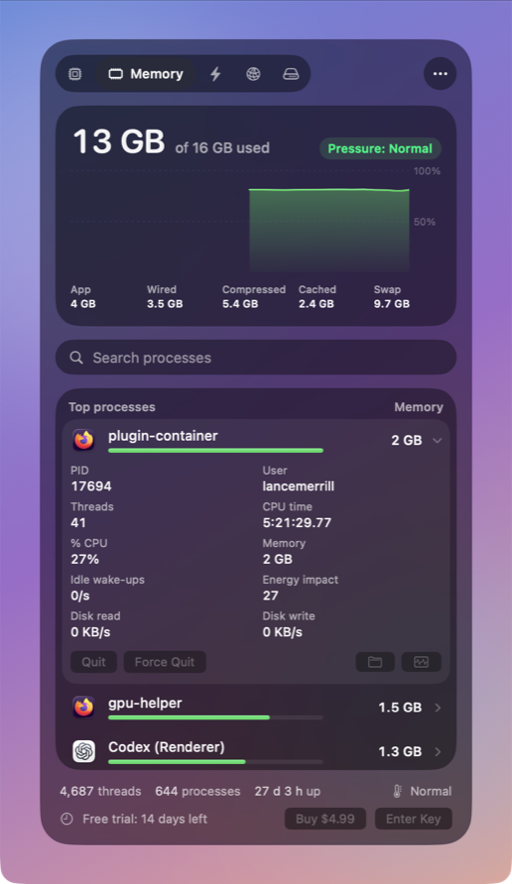
- Every Quit and Force Quit asks for confirmation first. System processes ask twice.
- Thrum never offers Quit for the kernel, launchd, WindowServer or loginwindow.
- Search by name or PID, Reveal in Finder, and Open in Activity Monitor are next to each process.
Thrum is $4.99 once, with a 14-day free trial and no account. After the trial the menu bar graph and the popover keep working; Quit, Force Quit and alerts need a license. It requires macOS 26 Tahoe, on Apple silicon or Intel.
Questions
What is the shortcut to force quit on a Mac?
Option-Command-Esc opens the Force Quit Applications window. Select the app and click Force Quit.
Why is an app not in the Force Quit window?
The Force Quit window lists only apps with a window or Dock icon. Use Activity Monitor to stop background processes and menu bar apps.
Is it bad to force quit an app?
It is safe for the Mac, but unsaved changes in that app are lost. Use Quit first when the app still responds.