 Thrum
How to check disk read and write activity per app on a Mac
Last checked: October 2026 on macOS 26 Tahoe.
To see which app is reading from or writing to the disk on a Mac, open Activity Monitor (Applications > Utilities), click the Disk tab, and sort by Bytes Written or Bytes Read. Those columns are totals since each process started; the bottom of the window shows the current read and write speed for the whole Mac. A process whose numbers keep climbing while you watch is the one keeping the disk busy.
Disk activity per app in Activity Monitor
- Open Activity Monitor. Press Command-Space, type Activity Monitor and press Return.
- Click Disk at the top of the window.
- Choose View > All Processes. Much disk activity comes from system processes, such as Spotlight and Time Machine.
- Click Bytes Written to find the biggest writers, or Bytes Read for the biggest readers.
- Watch the list for a minute to see which totals are rising now.
At the bottom of the window, Reads in/sec and Writes out/sec count disk operations, and Data read/sec and Data written/sec show the current speed for the whole Mac. The IO and Data choice next to the graph switches between the two. Choose View > Dock Icon > Show Disk Activity to turn the Dock icon into a live disk graph.
The Disk tab is the same in macOS 26 Tahoe, macOS 15 Sequoia and macOS 14 Sonoma.
In Terminal
For the whole Mac, one line per second for each disk:
iostat -w 1Press Control-C to stop. MB/s is the combined read and write speed. To see which process is reading and writing which files, sudo fs_usage -f diskio prints every disk operation as it happens; it needs an administrator password and produces a lot of output, so stop it with Control-C after a few seconds.
Common causes of heavy disk activity
- Spotlight (
mds,mds_stores,mdworker) indexing new or changed files, especially after a macOS update or a large copy. - Time Machine (
backupd) during a backup. - iCloud and other sync apps downloading or uploading files.
- Photos analysing a library (
photoanalysisd). - Swap. When memory is short, macOS writes memory to disk. If disk writes are high and memory pressure is yellow or red, see what Swap Used means.
- Apps writing logs or caches, such as browsers, developer tools and virtual machines.
Indexing, backups and photo analysis finish by themselves. For an app that keeps writing while you are not using it, quit it from Activity Monitor: select it, click the Stop button in the toolbar, and choose Quit.
Why it matters
Heavy disk activity makes apps slower to open and save, because they wait for the disk. Constant writing also counts toward an SSD's lifetime write total. Neither is a concern for short bursts; it is worth looking into when one process writes continuously for hours.
Disk read and write per app with Thrum
Thrum's Disk tab shows disk read and write speed for the whole Mac on a 60-second graph, and up to eight processes that are reading or writing right now, with their app icons. It is one click from the menu bar, so you can check it the moment the Mac slows down.
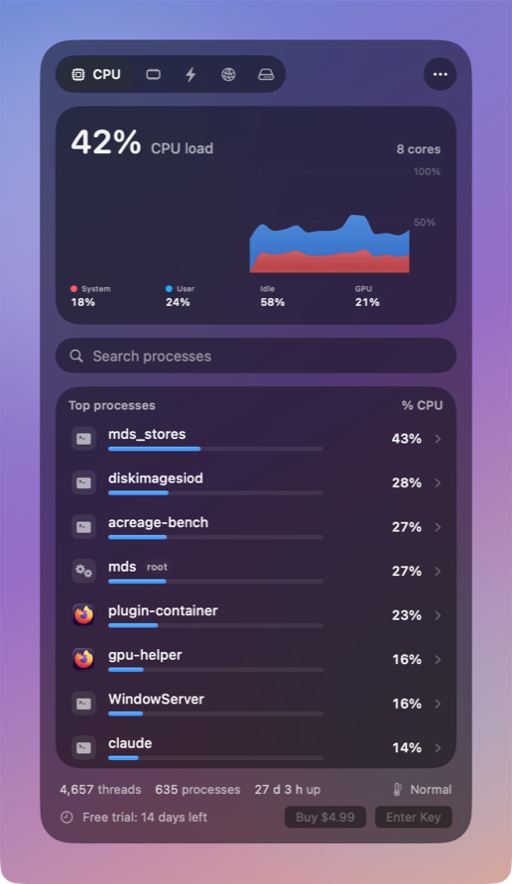
- Per-app figures are rates (bytes per second now), not totals since the process started.
- For processes owned by root, such as Spotlight's
mds_stores, macOS does not share disk counters with apps that run without administrator rights, so Thrum shows "–" for them. The whole-Mac graph includes them. - Click a process to Quit or Force Quit it after a confirmation, or Open in Activity Monitor.
Thrum is $4.99 once, with a 14-day free trial and no account. After the trial the menu bar graph and the popover keep working; Quit, Force Quit and alerts need a license. It requires macOS 26 Tahoe, on Apple silicon or Intel.
Questions
Why is my Mac writing to the disk all the time?
Usually Spotlight indexing, a backup, cloud sync or swap. Open Activity Monitor's Disk tab, choose View > All Processes and sort by Bytes Written to see which.
What is mds_stores?
It is part of Spotlight, which indexes files so you can search them. It is busy after large changes and settles down when indexing finishes.
Does Activity Monitor show disk speed per app?
Not directly. Its per-app columns are totals since each process started; the speeds at the bottom are for the whole Mac.