 Thrum
How to see which app is using CPU from the Mac menu bar
Last checked: October 2026 on macOS 26 Tahoe.
A fan that spins up, a hot laptop or a sluggish window usually means some process is using a lot of CPU. Activity Monitor tells you which one, but only while its window is open. Here is how to keep an eye on CPU use without it, using what comes with macOS, and then with a menu bar meter.
What macOS offers
macOS has no CPU meter for the menu bar. Activity Monitor, in Applications > Utilities, has three smaller views that come close.
A CPU graph in the Dock
- Open Activity Monitor.
- Choose View > Dock Icon > Show CPU Usage (bars) or Show CPU History (a scrolling graph).
- Close the main window. The Dock icon keeps updating as long as Activity Monitor is running.
Limits: the Dock icon shows the total, not which app is responsible, and it is hidden when the Dock is set to hide or when you're in a full-screen app.
A floating CPU window
In Activity Monitor, choose Window > CPU Usage (Command-2) or Window > CPU History (Command-3). Each opens a small graph window that you can place in a screen corner. Limits: again only totals, and the window sits behind other apps' windows.
The battery menu
On a Mac laptop, click the battery icon in the menu bar. If any app is using a lot of power, it is listed under Using Significant Energy. Limits: it lists only apps macOS considers heavy, with no numbers, and it doesn't exist on desktop Macs.
Finding the app responsible
- Open the main Activity Monitor window (Window > Activity Monitor, or Command-1).
- Click the CPU tab and click the % CPU column so the highest value is at the top.
- Choose View > All Processes to include processes owned by the system and other users.
- To stop a process, select it and click the Stop button (the X in the toolbar), then choose Quit or Force Quit.
Activity Monitor counts 100% per core, so a value of 400% means a process is keeping four cores busy.
A CPU meter in the menu bar with Thrum
Thrum puts a live CPU graph in the menu bar. Click it and a popover lists the eight processes using the most CPU right now, with their app icons, including processes owned by root and other users. Click a process for its PID, user, threads, CPU time, idle wake-ups and memory, and to Quit or Force Quit it after a confirmation. System processes ask twice.
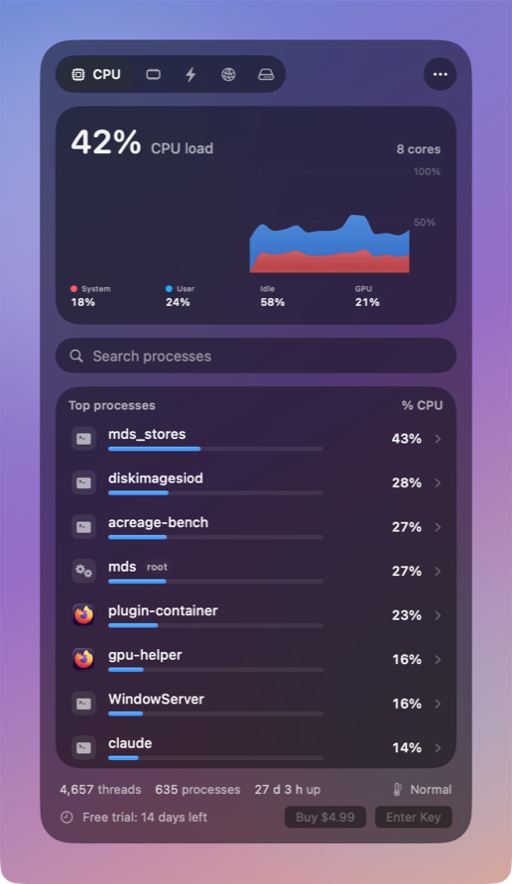
- The menu bar item can show a CPU graph, CPU percentage, memory used, or CPU and memory bars. An optional second item shows upload and download speed.
- The CPU tab shows system, user and idle CPU and GPU use for the whole Mac, on a 60-second graph.
- Memory, Energy, Network and Disk tabs list the top processes for each, the same way.
- Alerts can notify you when an app stays busy for a few minutes. They are off until you turn them on.
- Open in Activity Monitor is one click away when you want the full list.
- With the popover closed, Thrum reads a few system counters at most every 2 seconds. On a MacBook Pro (M1 Pro) that measured 0.3% CPU and 15 MB of memory.
Thrum is $4.99 once, with a 14-day free trial and no account. After the trial the menu bar graph and the popover keep working; Quit, Force Quit and alerts need a license. It requires macOS 26 Tahoe, on Apple silicon or Intel.
Questions
Can macOS show CPU usage in the menu bar without an app?
No. macOS has no built-in CPU meter for the menu bar. Activity Monitor can show CPU in its Dock icon instead.
Why does a process show more than 100% CPU?
Activity Monitor counts 100% per CPU core, so a process using four cores fully shows 400%. Thrum's list uses the same scale.
Does a menu bar CPU meter slow the Mac down?
It uses some CPU itself. Thrum measured 0.3% CPU with its popover closed, and 2.5% with it open, on an M1 Pro MacBook Pro at the default 2-second interval.